Tech No†es
If your PC is louder than your plane, if each CD-read from your drive gives you the
feeling of having an F17 on your six, then your PC is definitely too loud. Here are some hints for
"denoising" your PC according to your skills.
Case resonance:
Put both hands on the sides of your PC-case. If you notice a reduction in noise, then the case of your PC is giving most of the noise to the
environment, instead of absorbing it. This is very common due cheap case designs. You can reduce this
resonance, sticking thin foam or styropor
sheets in the inside of the sides (the biggest areas) of the case cover. You can use those foam sheets used for
shipping. The should be glued over the complete surface, not only some points. I did it with
that (white) glue that is commonly used for wood gluing. I "painted" the inner sides of the case with that
glue, using a small paint roll (a brush works fine too), placed the precutted foams on it and after about 20 minutes it was
ready. Of course there are other types of materials that do this work. The ones
I used are the most common ones you will find in your household and wood glue is
easy to remove from metal.
Other materials for this purpose can be found under the following links (thanks to WW-Kahuna):
http://www.3m.com/us/auto_marine_aero/automotive_oem/interior/thinsulate.jhtml
Caution:
1) Be sure to leave free of glue and foam the borders of the cover, where it gets in contact to the rest of the case
and avoid the foams contacting any PC-Card. Otherwise you will decrease the shielding of electrical radiation to the environment
and avoid the PC-cards to be cooled by air.
2) This modification will increase
a little the inner temperature of the PC. If your system is now running too hot, don't apply this
modification.
CPU-cooler (Fan):
To avoid system crash you should inspect the fan of the CPU-cooler once a year! Most low cost coolers get dusty and
begin to fail or slow down after about 2
years. If you experience that
your PC hangs a few seconds or minutes after turning on, this could be the cause. If Murphy's law is smiling at
you, the CPU will overheat and hang right in the moment when Windows is updating the
System.DAT, User.DAT or any other very important system file at startup. In this case a new installation of Windows will be the
consequence! Another characteristic of a dirty fan is an increased or strange
noise. But even if the fan is ok and/or new, it could be very loud and noisy. So if you detect that your CPU fan should be
changed, you should consider to buy one of the better (more expensive) ones.
For my actual PC, I bought and rejected tree fans, because they were too noisy! Finally I took a larger fan
(for other devices, 24V) that at 12V
runs slower and adapted it to the CPU cooler. This is not easy and depends on the motherboard layout, that determines how much space do you have to do
this. I also put such a fan in the bottom of the case, oriented partially to the graphics card ant partially to the CPU, to increase the inner air
circulation. My CPU runs now about 5°C warmer than before, but it is still under 60°C. And from the 2 fans I hear
nothing. Next time I will try to build a passive water cooling system.
Power supply fan:
I did no changes to this, it isn't worth of it. The noise of this fan only is really nasty when you have the PC on your desk and the desk towards the wall. The noise is reflected by the wall. Best place for PCs is under the
desk, even if it is a small tower (it also saves desk space).
Hard disk drive:
the hard disk drive normally has no excessive noise levels, most of it is related with resonance in the
case. You can buy special carriers for the hard disk that use a kind of rubber suspension but I never tested it. In any case it shouldn't be covered or shielded with foam or any other isolators due
overheating!
CD-Rom drive:
This is a really nasty noise generator. The level and impertinence of its noise is growing steady with their speed
increase. When I changed my drive from 8x to 48x, it was really astonishing how loud this drives can
be. Unfortunately, most of the games need the CD to be inserted while you play. In addition to
this, it took a "long" time to access the drive when it is not
running. Depending on the game, you get a pause or the impression your system hangs until the
CD-ROM drive reaches its speed. For RB, I use the virtual CD program "FakeCD". There are other Virtual CD programs that work fine
too. Since I installed this utility, the game is more fluent and I have no more nasty
whiners! (besides it keeps my RB CD-ROM from wearing out!)
Creating a Virtual CD-Drive Win9x only!!!
Here are the steps to install a virtual CD-Drive for your Red Baron (or other game):
First you need the program FakeCD. Unzip this .exe file and copy it into the Windows directory (C:\Windows).
Edit the autoexec.bat file (Start > Run > Sysedit) and add a line like this:
Fakecd_/Multi_<vCDpath>_/L:<X>.
<vCDpath> is the directory in your hard disk which contains the CD files and <X> is the drive letter, your want to assign for your vCD. The underline "_" represents blank spaces.
For example, the line: Fakecd_/Multi_C:\MyCDs\RB_/L:V will install a Virtual CD as drive V: and it will contain all the files stored under C:\MyCDs\RB
What files must be copied for RB3D?
If you installed RB3D with the option Full you only need to copy the following files/directories to the vCD's path: Baron.ico, Data\Multi\*.* and Data\Video\*.* (*.* means all files). If you installed RB3D with small or medium, then you have to put those files that make the difference to the full installation
Of course you can install more than one vCDs on your hard disk for different applications! Also note that there are many other ways and programs to emulate virtual CDs.
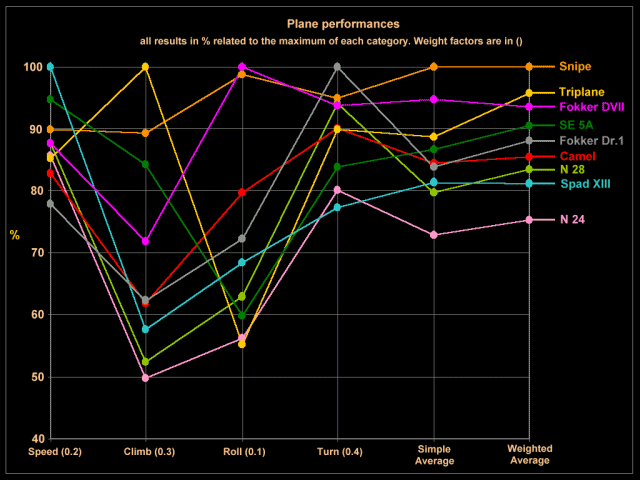
The following chart was created, based on the plane tests available on the JGS4 homepage. Using this table, maybe will help you to know what are your opponents strengths and weakness. Click here to download the PDF of this chart.